 Viva
VivaGetting started with Viva Expense Tracker
By Viva Finance · Updated
Start with your account balances, record money coming in and going out, then add recurring payments and savings goals. Viva is a manual tracker: its picture of your finances depends on the records you enter.
Try these ideas with sample data first. The website demo needs no sign-in and includes Pro access; features and limits in the free app plan differ.
1. Start with your accounts
Add the accounts you want to track and enter their balances. Viva does not retrieve live balances from your bank. Review your entries against your own records so you begin with an accurate picture.
2. Record expenses and income
Enter an amount, date and account for each transaction, and use categories to organise expenses. You can also scan receipts with AI or import supported CSV statements. Review imported or AI-generated details before relying on them.
For example, record a MVR 120 lunch against the account used to pay for it. Use the expense view to review that entry and the account view to check its effect on the balance. The demo uses MVR; Viva supports more than 150 currencies.
3. Bring recurring payments into view
Record bills, subscriptions and recurring loans to see upcoming commitments. Tracking a bill in Viva does not make a payment to the provider; keep using your normal payment method.
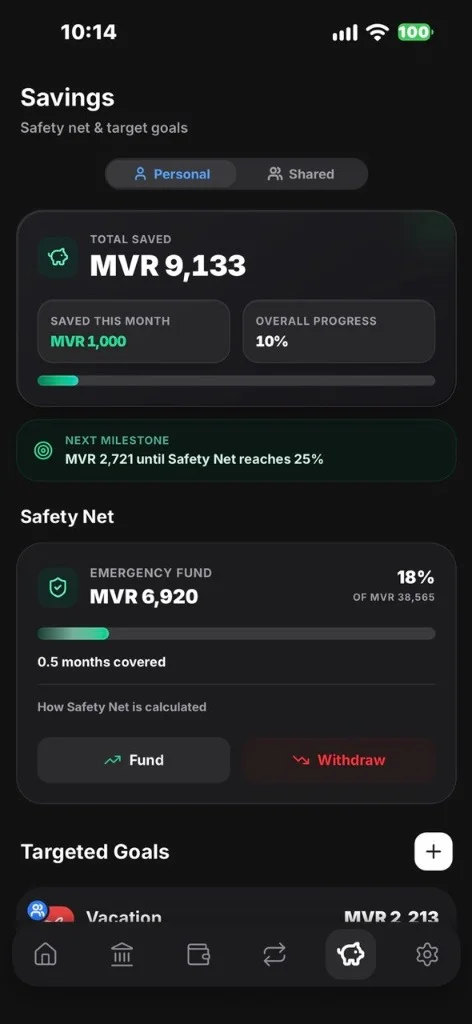
4. Track savings separately
Use savings goals for a target and Safety Net for an emergency fund. Recording an amount toward a goal tracks your progress; it does not transfer money at your bank. Savings remain personal even when you use a linked partner view.
5. Check your records and sync status
Review your entries regularly against your own accounts. Supported changes can queue offline and sync when you reconnect. Check whether the app reports pending, syncing or synced changes before assuming that everything is up to date.
What should I check before using Viva AI?
AI features are optional and their availability and limits depend on your plan. Relevant prompts and context are sent to AI providers. Review the Privacy Policy and check AI-generated results before using them.
A worked example: one expense and one savings contribution
Open the live demo and choose Reset demo if you have already changed its sample data. These amounts describe the website demo, not a real account.
- Check Accounts: Everyday account starts at MVR 11,585. Cash wallet starts at MVR 1,500.
- Add a new expense for MVR 120 and select Everyday account. Its balance becomes MVR 11,465.
- Open Savings and add MVR 200 to Island getaway from Everyday account. The goal rises from MVR 3,600 to MVR 3,800; Everyday account becomes MVR 11,265.
The goal target is MVR 5,000, so its recorded progress moves from 72% to 76%. The cash wallet stays at MVR 1,500. Reset the demo to return to the original values. The demo records changes in sample data; it does not move real money.
Is manual tracking right for you?
Viva suits people who want to choose what they record and can keep those records up to date. If you need transactions to arrive automatically from a bank connection, Viva’s current manual approach will not meet that requirement.
| Task | In Viva | Your responsibility |
|---|---|---|
| Expenses | Record entries manually, scan receipts or import supported CSVs. | Check amounts and account selections; AI results need review. |
| Bills | Track due payments and recorded payment status. | Make the actual payment using your normal payment method. |
| Savings | Track contributions against goals and Safety Net. | Manage the real money in your bank or cash accounts. |
| Account balances | Follow balances based on recorded activity. | Compare records with actual balances; there is no live bank feed. |
Offline and sharing limits
Supported changes can queue offline and sync after reconnection. Check the sync status before assuming a change has reached your account. Online services such as AI processing still depend on connectivity.
Partner views can show supported household records. Each person edits their own records; savings goals and Safety Net stay personal. For data processing and deletion, see the Privacy Policy and account deletion guide.
Where can I get help?
Read the product FAQs, learn about Viva Finance, or email support@viva-finance.net. Download Viva or open the web app when you are ready.